
When I first upgraded to Canva Pro, I made the classic beginner mistake — I just clicked “Subscribe” without thinking about whether I actually needed an individual account or a team setup. A few months later, when I started working with two other freelancers on a client project, I had to untangle the whole thing and switch to Canva for Teams anyway.
Save yourself that hassle. This guide walks through setting up your Canva Pro account properly the first time — choosing the right plan, adding team members if you need to, and managing your billing without any confusion later.
(Haven’t subscribed yet? Start with our Canva Pro Free Trial guide to test things out first, or check our full pricing breakdown to figure out which plan actually fits your budget.)
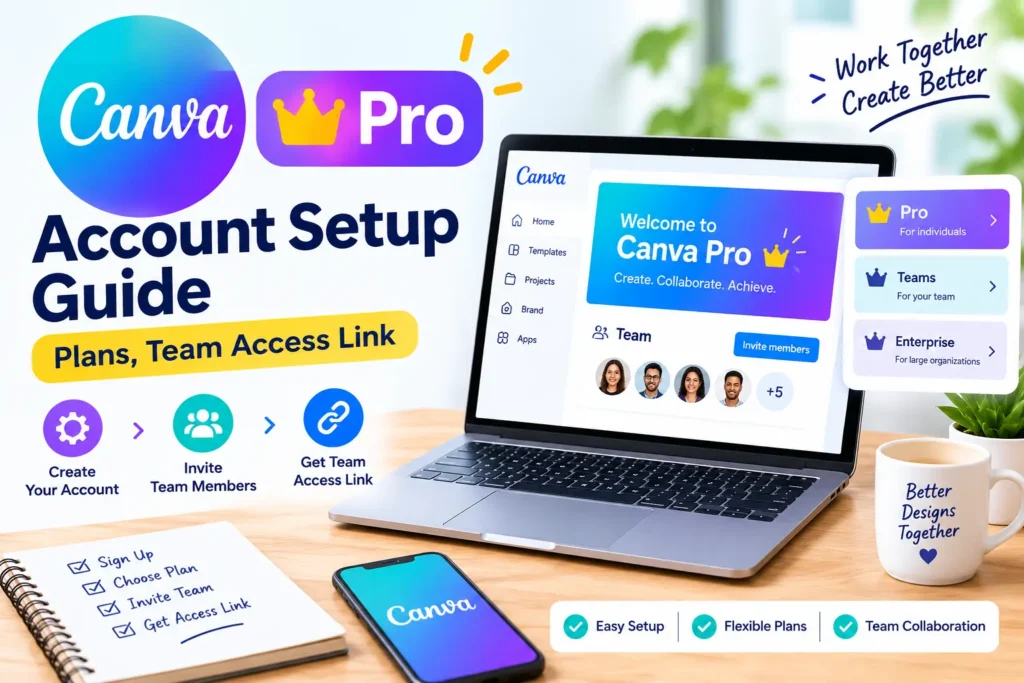
Setting Up Your Canva Pro Account, Step by Step
Here’s the process:
- Sign up at Canva.com using your email, Google, or Facebook account.
- Head to Settings → Billing & Plans.
- Choose between Canva Pro (individual) or Canva for Teams.
- Pick monthly or annual billing.
- Enter your payment details to activate.
One thing worth knowing — if you already have a free Canva account with existing designs, upgrading doesn’t wipe anything out. All your old projects stay exactly where they are; you’re just unlocking the Pro features on top of what’s already there.
Canva Pro Team Link 1
Canva Pro Team Link 2
Canva Pro Team Link 3
Individual Account or Team Account — Which Do You Actually Need?
This is the decision I got wrong the first time, so let me save you the trouble.
| Canva Pro (Personal) | Canva for Teams | |
|---|---|---|
| Best for | Solo freelancers, individual creators | Agencies, businesses, marketing teams |
| Users | 1 | 2+ (scalable) |
| Shared brand kit | No | Yes |
| Centralized billing | N/A | Yes, one invoice |
| Approval workflows | No | Yes |
If it’s just you designing for your own projects, the individual Pro plan is all you need. But the moment another person joins — a social media manager, a second designer, even a client who needs to review drafts — Canva for Teams starts making a lot more sense. It keeps everyone’s branding consistent and billing in one place, instead of everyone paying separately.
Adding Team Members to Your Account
If you do go the Teams route, here’s how to bring people on:
- From your dashboard, click “Invite members.”
- Enter their email addresses.
- Assign a role — Admin, Member, or Designer — each with different permission levels.
- They’ll get an email invite to join your workspace.
Once someone joins, they immediately get access to your shared brand kit, templates, and folders. The billing, though, stays centralized under whoever owns the account — so team members don’t need their own separate subscriptions.
Managing Your Billing Without Surprises
Your billing settings live in one place:
- Go to Settings → Billing & Plans.
- From here, you can:
- Switch between monthly and annual billing
- Update your payment method
- Download past invoices
- Pause or cancel your subscription
If you’re currently on a free trial and want to avoid getting charged, this is the exact section to cancel from — and you’ll want to do it before your trial period ends. Our free trial guide covers the exact timing so you don’t cut it too close.
Managing Multiple Accounts (For Freelancers and Agencies)
If you’re juggling several clients or brands — which, if you’re freelancing, you probably are — you don’t need to log out and back in every time you switch. Canva lets you create separate accounts for each brand and switch between them using the account switcher in the top-left corner of your dashboard.
I use this constantly when handling brand kits for different clients — it keeps everything separate and avoids any awkward moments where one client’s colors end up in another client’s design.
A Few Common Account Issues (And How I’ve Fixed Them)
Forgot your password? Use the “Forgot Password” link on the login page. The reset email usually lands within a couple of minutes — check spam if it’s taking longer.
Got charged after cancelling? Check your confirmation email for the exact cancellation timestamp. If you cancelled before your billing date, reach out to Canva support with that reference — this has resolved it every time I’ve seen it happen.
Can’t seem to add team members? Double check you’re actually on a Canva for Teams plan. Individual Pro accounts don’t support multi-user invites, which trips people up more often than you’d think.
Frequently Asked Questions
Can I switch from an individual Canva Pro account to a Teams account later?
Yes, you can upgrade to Canva for Teams anytime from your Billing & Plans settings without losing your existing designs.
Do team members need their own Canva Pro subscription?
No. Once invited to a Teams account, members get full Pro access under the account owner’s subscription — no separate billing needed.
Can I remove a team member later?
Yes, admins can remove members anytime from the team management settings, and their access is revoked immediately.
Will I lose my designs if I downgrade from Pro to the free plan?
No, your designs remain in your account. You’ll just lose access to Pro-only templates, elements, and premium tools going forward.
Final Thoughts
Setting up your Canva Pro account properly from day one — picking the right plan type and organizing team access correctly — saves you a genuine headache down the line, especially once you’re juggling multiple projects or clients. If you haven’t picked a plan yet, it’s worth comparing the full cost breakdown here before subscribing.
Still deciding if Canva Pro is worth it? Try it free for 30 days with our step-by-step free trial guide.